Table of contents
Google Keyword Planner is free, it's built directly into Google Ads, and it's still one of the most trusted sources of first-party search volume data available, because the demand data comes straight from Google search itself rather than a third-party estimate. The catch is that most people open it, get overwhelmed by the interface, and never get past the setup screen. This guide walks through exactly how to use Google Keyword Planner, from account setup to reading the metrics correctly, so the tool actually turns into keyword ideas worth acting on.
Key Takeaways
- Google Keyword Planner requires a free Google Ads account, but no active ad spend, to access basic keyword ideas; choosing "Switch to Expert Mode" and creating an account without a campaign skips the ad-launch step entirely.
- The tool has two core modes: Discover new keywords for brainstorming from a seed term or website, and Get search volume and forecasts for analyzing a keyword list you already have.
- Average monthly searches show as broad ranges (like 1K-10K) unless the account has billing information added, even without ever spending on ads.
- "Competition" in Keyword Planner measures Google Ads advertiser bidding activity, not organic ranking difficulty; a term can be commercially competitive and still realistic to rank for organically, or the reverse.
- Keyword lists export as a CSV file, making it easy to move data into a spreadsheet, a content calendar, or another SEO tool.
- For a complete picture, pair Keyword Planner's demand data with Google Search Console, which shows how a website is actually performing for those same terms.
What is Google Keyword Planner?
Google Keyword Planner is a free keyword research tool built into Google Ads that generates keyword ideas, shows estimated search volume, and forecasts advertiser competition and cost for any given term. ALM Corp's breakdown of the tool makes a point worth sitting with: what makes it genuinely useful isn't just that it produces keyword suggestions, it's that those suggestions come from the same ecosystem where Google organizes and prices paid search demand, which makes the underlying data unusually reliable compared to many third-party estimates. Read ALM Corp's full guide here.
It was built for advertisers planning Google Ads campaigns, but SEO professionals have used it for keyword research for years. SEO.com's writeup on using Keyword Planner for SEO puts it simply: the tool is free, fast, and surfaces both short- and long-tail keyword ideas, which is exactly why it remains a starting point even for teams that also pay for tools like Ahrefs or Semrush.
How to access Google Keyword Planner
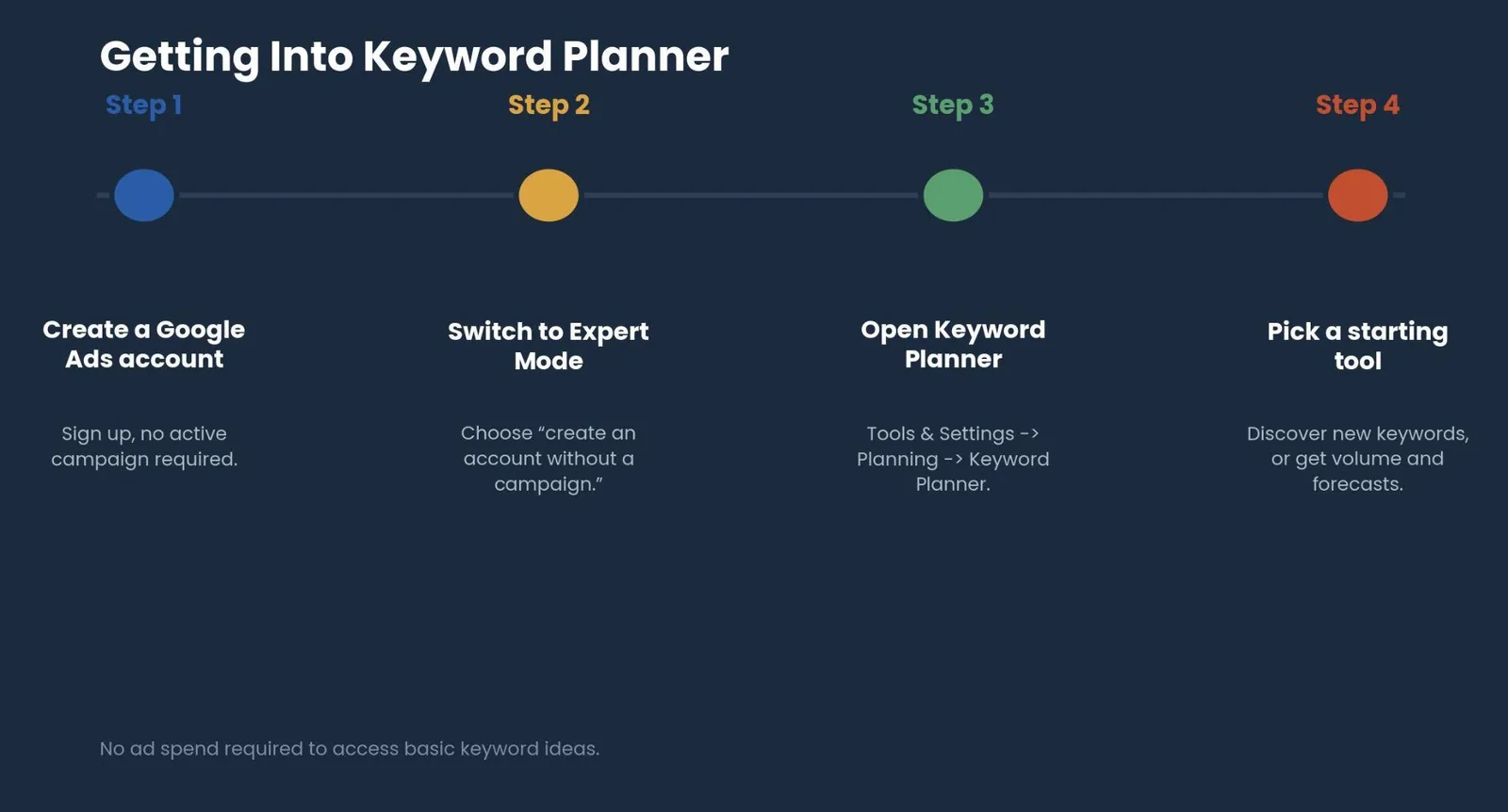
Getting in takes a few minutes the first time. Start by creating a free Google Ads account; the account creation itself never charges anything, since Keyword Planner lives inside Google Ads but doesn't require an active campaign to use, as DMA's 2026 walkthrough explains.
If Google prompts you to launch a campaign during setup, look for "Switch to Expert Mode" and then choose "Create an account without a campaign." That keeps the account free of ad spend. From there, go to "Tools & Settings" in the top menu, then Planning > Keyword Planner.
Sources don't fully agree on how much billing information changes what you can actually see. Google's own Ads Help documentation states plainly that billing information is required to access basic features like keyword discovery in the first place. Other 2026 guides describe the tool as usable without billing but limited to broad search-volume ranges rather than blocked outright. Either way, no campaign has to launch and nothing gets charged unless ads actually run, so adding billing details costs nothing, it just may be necessary sooner than some secondary guides suggest.
The two core tools inside Keyword Planner
Once inside, two options appear: Discover new keywords and Get search volume and forecasts. Picking the right one first saves real time.
Not sure which one fits your situation? The tool below asks two quick questions and points you to the right starting mode.
Keyword Planner tool
Which Keyword Planner mode should you start with?
Answer two quick questions to get a recommendation.
1. What do you already have?
2. What's the goal right now?
Answer both questions above
Your recommended starting tool will appear here.
Discover new keywords is where most SEO and content work starts. Enter a handful of seed terms, a competitor's URL, or a website, and Google returns hundreds of related suggestions, often grouped into themes. Keywordme's walkthrough of the tool flags a specific detail worth using: clicking the "Grouped ideas" tab clusters related terms automatically, which is handy for structuring both ad groups and content silos without doing the grouping manually. See Keywordme's full guide.
Get search volume and forecasts works the opposite direction: upload or paste an existing keyword list, either typed directly or as a CSV file, and the tool returns volume, competition, and bid data for those exact terms. This mode is built for validating a list that's already been drafted, not for generating new ideas.
Discover new keywords vs. Get search volume and forecasts
| Factor | Discover new keywords | Get search volume and forecasts |
|---|---|---|
| Best for | Brainstorming, expanding a seed list | Validating an existing keyword list |
| Input | Seed terms, a website, or a competitor URL | A typed list or uploaded CSV file |
| Output | Hundreds of grouped keyword ideas | Volume, competition, and bid data per term |
| Typical use case | Early-stage content or campaign planning | Confirming demand before committing resources |
| Filters available | Brand/non-brand, location, language | Location, language, date range |
Reading the metrics: what the numbers actually mean
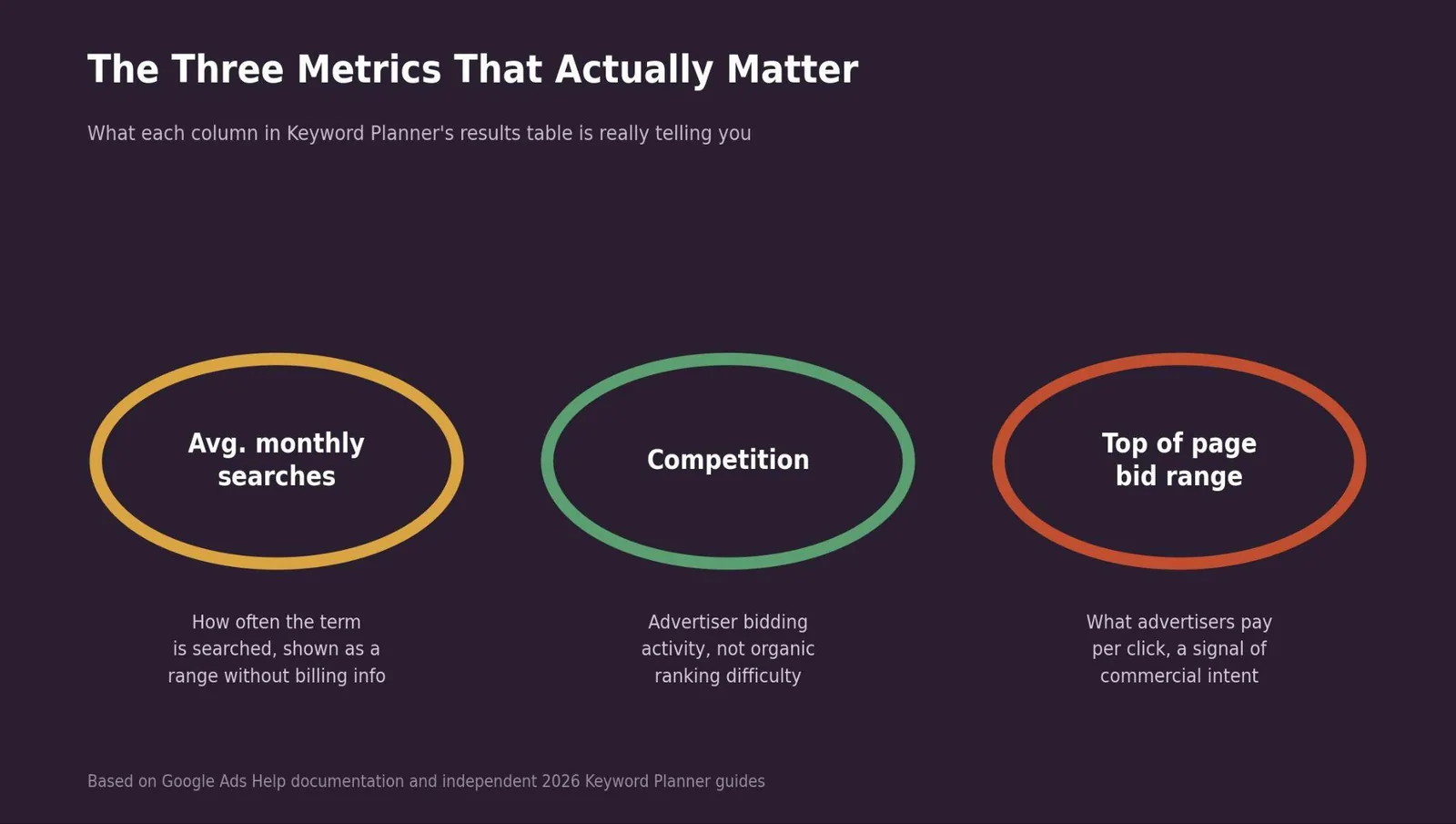
Three columns matter most in the results table, and each one is commonly misread.
Average monthly searches estimates how often a term is searched. Accounts without consistent ad spend see this figure as a broad range, something like 1K-10K, rather than a precise number, a limitation DMA's guide calls out directly.
Competition is the one most often misunderstood. This column reflects how many advertisers are bidding on a term in Google Ads, not how difficult it is to rank for organically, a distinction ResultFirst's 2026 guide spells out clearly. A term can show "High" competition here and still be very achievable in organic search, or the reverse.
Top of page bid range shows what advertisers actually pay per click, which functions as a rough proxy for commercial intent even for teams that never plan to run PPC ads. A wide bid range often signals a term genuinely drives business value; a near-zero range often signals informational rather than transactional intent.
Using Keyword Planner for SEO, not just PPC
Even though Keyword Planner is an advertising tool at its core, its SEO value gets acknowledged across nearly every guide on the subject: the tool tells you what people search for, not how hard it is to rank for it. Keyword difficulty and search intent need to be layered on separately using SEO-specific tools or manual SERP review.
That gap is exactly why Keyword Planner works best paired with other data sources. Google Search Console shows how a site is actually performing for the same terms Keyword Planner surfaces, which closes the loop between estimated demand and real results. Ubersuggest, the keyword tool Neil Patel built after acquiring the domain in 2017, offers a free tier as a secondary check, though it's worth knowing that tier caps out at just 3 searches per day with limited data, per Surferstack's 2026 profile of the tool; it's a reasonable spot-check, not a full replacement for Keyword Planner's own data.
Common Keyword Planner mistakes
Treating "Competition" as an SEO difficulty score is the most common and most consequential mistake. It measures paid advertiser demand, nothing about organic ranking difficulty.
Ignoring search intent in favor of raw search volume is a close second. A term with 50,000 monthly searches that's purely informational won't convert the same way a lower-volume, high-intent term will; volume alone never tells the whole story.
Treating the volume range as exact when no billing information has been added is a subtler mistake. The range shown, say 1K-10K, could represent very different realities at either end.
And using only Keyword Planner without cross-referencing Google Search Console or a dedicated SEO tool leaves a real gap: Keyword Planner shows demand, not current performance or ranking difficulty.
Related reading
- How to Use Google Search Console: A Step-by-Step Walkthrough
- Google AI Overviews: What They Are, How They Work & How to Optimize
- Google Competitors: Who Actually Competes for Search Traffic
- GEO & AEO services at Web Tonic
Frequently asked questions
Is Google Keyword Planner free to use?
Yes, though sources differ on exactly when billing information becomes necessary. It requires a free Google Ads account, and Google's own documentation states billing details are needed to access basic features, but no ad spend is required unless a campaign is actually launched.
Do I need to run ads to use Keyword Planner?
No. Choosing "Switch to Expert Mode" and then "Create an account without a campaign" during setup allows access to the keyword research tools without launching a paid campaign.
Why does my search volume show as a range instead of an exact number?
Google shows broad ranges, like 1K-10K, for accounts without consistent ad spend or billing information added. Adding billing details, without necessarily spending on ads, typically unlocks more precise figures.
Can I use Google Keyword Planner instead of a paid SEO tool?
It's a strong starting point and genuinely useful for keyword discovery and demand data, but it doesn't measure organic ranking difficulty or analyze SERP features. Most SEO teams pair it with Google Search Console and a dedicated SEO tool for a complete picture.
What's the difference between Keyword Planner's "Competition" and keyword difficulty?
"Competition" reflects Google Ads advertiser bidding activity for a term. Keyword difficulty, a metric from third-party SEO tools, estimates how hard it is to rank organically. They measure different things and can point in completely different directions for the same keyword.
Putting Keyword Planner data to work
Google Keyword Planner remains one of the most reliable free sources of first-party search demand data, provided its output gets read correctly. Use "Discover new keywords" to brainstorm, "Get search volume and forecasts" to validate, and always treat "Competition" as a paid-search signal rather than an organic ranking verdict. Export the list as a CSV, cross-check it against Google Search Console, and the raw data turns into an actual content or campaign plan instead of just a spreadsheet full of numbers.
Turning keyword data into content and campaigns that perform
Pulling keyword ideas is the easy part; building the content and campaign structure to actually capture that demand is where most teams stall out. Web Tonic's SEO and growth marketing team handles keyword research, content planning, and paid search as one connected process, so a Keyword Planner export turns into real rankings and campaigns rather than sitting unused.
More from Web Tonic: growth marketing services, data & analytics.
Sources: almcorp.com · seo.com · digitalmarketingagency.sg · support.google.com · keywordme.io · resultfirst.com · surferstack.com