
Table of contents
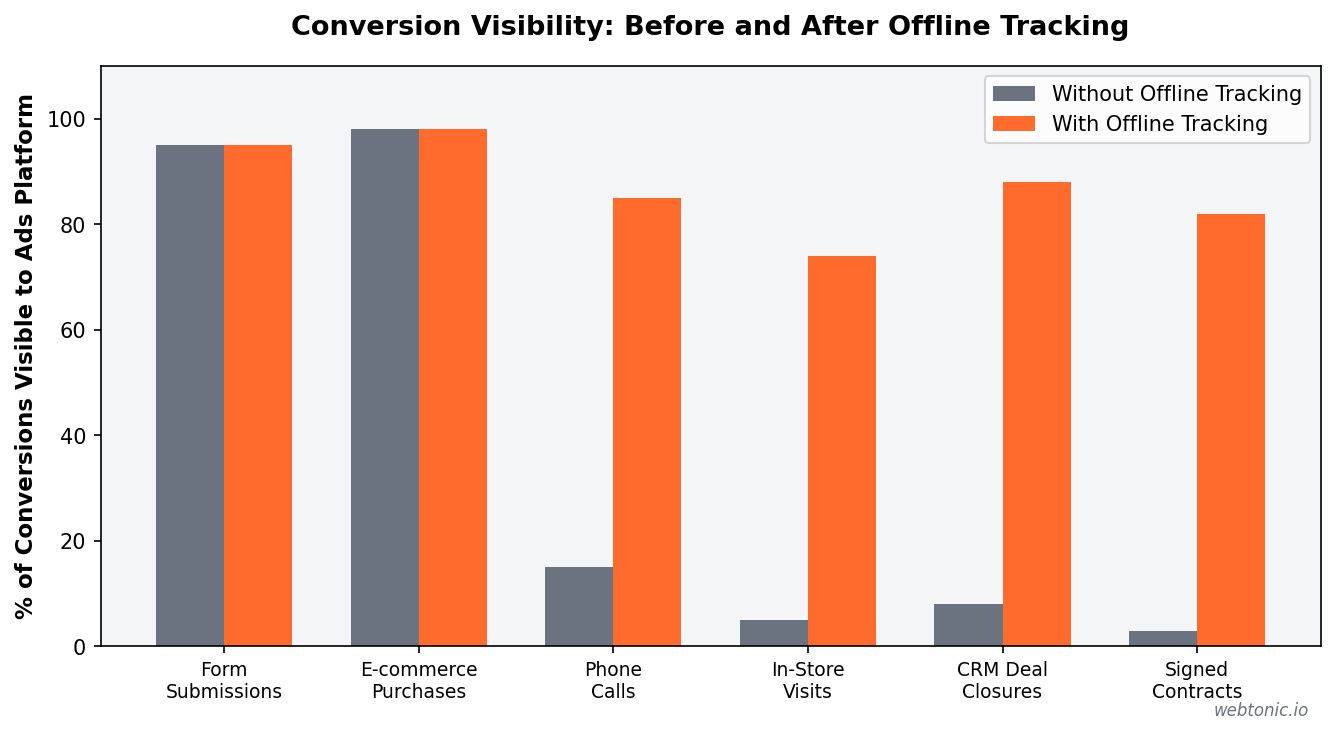
Most ad platforms only optimize for what they can see — and offline conversions are invisible by default. Offline conversion tracking bridges that gap by sending conversion data from your CRM, phone system, or point-of-sale back to Google Ads so the algorithm can optimize for the outcomes that actually matter to your business.
Key Takeaways
- Google Ads Data Manager now supports 14 native connectors — including Salesforce, HubSpot, Google Sheets, BigQuery, and Snowflake — making offline conversion imports dramatically simpler than manual CSV uploads.
- Enhanced conversions for leads uses hashed email addresses and phone numbers to match offline sales back to ad clicks, even when the GCLID is missing or expired.
- Godiva saw ROAS jump from 4 to 21.5 after implementing offline conversion tracking through Meta's CAPI for Offline — a 437.5% uplift — with 74% of total purchase revenue attributable to in-store conversions.
- The GCLID (Google Click ID) has a 90-day attribution window for most data sources, meaning offline conversions must be uploaded within 90 days of the original click to be counted.
- Auto-tagging must be enabled in your Google Ads account before any offline conversion tracking can work — this appends the GCLID parameter to your landing page URLs automatically.
- Google recommends upgrading legacy offline conversion imports to enhanced conversions for leads via Google Ads Data Manager, which offers improved durability, automatic GCLID collection via the Google tag, and better data matching.
What Offline Conversion Tracking Is and Why It Matters
Offline conversion tracking is the process of sending conversion data that happens outside your website — phone calls, in-store purchases, signed contracts, CRM deal closures — back to your ad platform. Without it, Google Ads only sees the online actions (form fills, e-commerce transactions) and optimizes bidding for those signals alone. If your real revenue comes from sales calls, in-person meetings, or offline transactions, the algorithm is optimizing for the wrong thing.
The business impact is significant. When Godiva implemented offline conversion tracking through Meta's CAPI for Offline, their reported ROAS jumped from 4 to 21.5 — not because performance changed, but because they could finally see the full picture. 74% of their total purchase revenue was attributable to in-store conversions that had previously been invisible to the ad platform.
For lead generation businesses, the gap is even more critical. A Google Ads campaign might generate 100 form submissions, but only 20 become qualified leads, and only 5 close as paying customers. Without offline conversion tracking, Smart Bidding optimizes for all 100 form fills equally — including the junk leads. Once you feed back which leads actually closed, the algorithm learns to find more people like your best customers and fewer like the leads that went nowhere. This is why tracking offline conversions is foundational to any serious growth marketing strategy.

How Offline Conversion Tracking Works in Google Ads
The mechanics of offline conversion tracking in Google Ads center on connecting a user's ad click to a conversion that happens later, outside your website. There are two primary methods, and Google now strongly recommends the newer one:
| Method | How It Works | Google's Recommendation |
|---|---|---|
| GCLID Import (Legacy) | Captures the Google Click ID appended to landing page URLs, stores it in your CRM alongside the lead, then uploads it with conversion data via CSV or API | Being phased out — upgrade to enhanced conversions for leads |
| Enhanced Conversions for Leads | Uses hashed user-provided data (email address, phone number) collected on your website form plus optional GCLID to match offline conversions back to ad clicks | Recommended — better durability, automatic GCLID collection, improved matching |
Both methods require auto-tagging enabled in your Google Ads account settings. Auto-tagging appends the GCLID parameter to your landing page URLs whenever someone clicks an ad. Your website then needs to capture this GCLID — either through a hidden form field, a cookie, or the Google tag — and store it alongside the user's contact information in your lead tracking system.
The core difference is durability. The legacy GCLID import relies entirely on capturing and storing one identifier. If the GCLID is lost, truncated, or not captured (which happens more often with cookie restrictions and cross-device journeys), the conversion cannot be matched. Enhanced conversions for leads supplements the GCLID with hashed first-party data — specifically hashed email addresses and phone numbers — so the match can still happen even when the click identifier is missing.
Setting Up Offline Conversion Tracking Step by Step
Here is the setup process for enhanced conversions for leads using Google Ads Data Manager, which Google now recommends as the primary method for tracking offline conversions:
- Enable auto-tagging in your Google Ads account settings. This is required for any offline conversion tracking method — it ensures the GCLID is appended to every click URL.
- Create a conversion action in Google Ads under Tools → Conversions → New conversion action → Import → CRM, files, or other data sources. Choose "Track conversions from clicks" and select "Enhanced conversions for leads."
- Install the Google tag on your website and configure it to collect hashed user-provided data (email address at minimum) from your lead forms. This can be done via Google Tag Manager or direct tag implementation.
- Connect your data source via Google Ads Data Manager. Supported connectors include Salesforce, HubSpot, Google Sheets, BigQuery, Amazon S3, Snowflake, MySQL, PostgreSQL, and SFTP. Select your CRM, authenticate, and map your conversion fields.
- Map conversion data fields. At minimum, you need: conversion action name, conversion date/time, conversion value (if applicable), and at least one user identifier (GCLID, hashed email, or hashed phone number).
- Set up a regular upload schedule. Data Manager runs automatically on a schedule you define. For most CRM integrations, daily imports are recommended to keep conversion data fresh for Smart Bidding optimization.
- Verify the import. After your first upload, check the conversion action in Google Ads to confirm data is being received. Look for the "Last uploaded" timestamp and verify conversion counts match your CRM records.
Data Sources and Upload Methods
Google Ads supports multiple methods for importing offline conversion data, and the right choice depends on where your conversion data lives and how technical your team is:
| Data Source | Import Method | Lookback Window | Best For |
|---|---|---|---|
| Salesforce | Native Data Manager connector | 14 days on first run, then incremental | Enterprise B2B with complex pipelines |
| HubSpot | Native Data Manager connector | 14 days on first run, then incremental | SMB and mid-market lead gen |
| Google Sheets | Direct upload via Data Manager | 90 days per run | Small teams without CRM integration |
| BigQuery | Database connector via Data Manager | 14 days per run | Data-mature teams with data warehouses |
| CSV Upload | Manual file upload in Google Ads | 90 days | One-time imports or testing |
| Google Ads API | ConversionUploadService | 90 days | Custom integrations at scale |
For most businesses, the fastest path is connecting your CRM natively through Google Ads Data Manager. The native Salesforce and HubSpot connectors handle field mapping, scheduling, and deduplication automatically. For teams using less common CRMs or custom databases, Google Sheets provides a simple intermediate option — export your conversion data to a sheet, and Data Manager pulls it on schedule.
The Google Ads API gives maximum flexibility for custom integrations. Using the ConversionUploadService, you can programmatically upload ClickConversion objects with normalized and hashed user-provided data. This is the recommended approach for agencies or businesses that need real-time conversion uploads or manage multiple Google Ads accounts. For help implementing advanced tracking setups, explore the data intelligence services at Web Tonic.


Enhanced Conversions for Leads vs. Legacy GCLID Import
Google is actively encouraging advertisers to migrate from the legacy offline conversion import to enhanced conversions for leads. Here is why the upgrade matters:
- Better matching accuracy. Enhanced conversions for leads uses hashed email addresses and phone numbers — not just the GCLID — to match offline conversions to ad clicks. This means conversions are still tracked even when cookies are blocked, the GCLID is lost, or the user converts from a different device.
- Automatic GCLID collection. When you implement enhanced conversions for leads with the Google tag, the tag automatically captures and stores the GCLID, eliminating the need for custom JavaScript or hidden form fields on your website.
- Improved Smart Bidding signals. Enhanced conversions provide richer user-level data to Google's bidding algorithms, which translates to better optimization for high-value conversions rather than just conversion volume.
- Privacy-safe by design. User-provided data is hashed using SHA-256 before being sent to Google. The raw email address or phone number never leaves your system — only the one-way hash is transmitted.
To upgrade, navigate to your existing offline conversion action in Google Ads, select "Turn on enhanced conversions for leads," and configure the Google tag to collect hashed user data from your lead forms. Google recommends continuing to import GCLIDs alongside user-provided data for maximum match accuracy — the two methods complement each other rather than replace one another.
Common Pitfalls and How to Avoid Them
Offline conversion tracking fails more often from setup mistakes than from technical limitations. Here are the most common issues and their fixes:
- Forgetting to enable auto-tagging. Without auto-tagging, no GCLID is appended to click URLs, and offline conversion imports have nothing to match against. Check Settings → Account settings → Auto-tagging in your Google Ads account.
- GCLID truncation in CRM fields. The GCLID is a long string (up to 100 characters). If your CRM field is set to a shorter character limit, the GCLID gets truncated and becomes unmatchable. Set the GCLID field in your CRM to at least 150 characters.
- Uploading conversions outside the attribution window. For Google Cloud Storage, Amazon S3, and Google Sheets, the lookback window is 90 days. For CRM connectors like Salesforce and HubSpot, it is 14 days. Conversions uploaded outside these windows are silently dropped.
- Duplicate conversion counting. When conversions are tracked through both an online pixel and an offline import, the same conversion can be counted twice. Use transaction IDs, event IDs, or click IDs to deduplicate — Google Ads matches on these identifiers to prevent double-counting.
- Ignoring consent signals. Offline conversion events should carry the consent signal from the original web session. If a user declined tracking on your site, that preference should be honored when you upload their conversion data. This is critical for GDPR and CCPA compliance. For help setting up compliant tracking, explore the Web Tonic blog and contact our team.
Related reading
- Conversion Tracking Benchmarks 2026: CPL, CTR and Conversion Rates
- First-Party and Third-Party Cookies in Ad Tracking
- Dental Analytics & Tracking Statistics 2026
- Marketing Analytics services at Web Tonic
FAQ
Can I run Google Ads without conversion tracking?
You can run Google Ads without conversion tracking, but you will lose access to Smart Bidding strategies like Target CPA and Target ROAS, which require conversion data to optimize. Without conversion tracking, you are limited to manual CPC bidding and cannot measure which campaigns, ad groups, or keywords actually drive results. For most advertisers, conversion tracking — including offline conversion tracking for lead gen — is not optional; it is the foundation that makes Google Ads optimization possible.
How do I set up offline conversion tracking in Google Ads?
To set up offline conversion tracking: 1) Enable auto-tagging in account settings, 2) Create a conversion action set to "Import" with enhanced conversions for leads enabled, 3) Install the Google tag to collect hashed user data from forms, 4) Connect your CRM via Google Ads Data Manager or prepare a CSV/Google Sheets import with GCLID, conversion time, and conversion value, 5) Schedule regular uploads (daily recommended). The first successful import typically takes 24–48 hours to appear in reporting.
When should I use offline conversions?
Use offline conversion tracking whenever your most valuable conversions happen outside your website. This includes phone call sales, in-store purchases, signed contracts, CRM deal closures, and any revenue event tracked in a system other than your website. Lead generation businesses benefit the most — by feeding back which leads actually closed, you let Smart Bidding optimize for revenue-producing clicks rather than raw form submissions. Any business where the final conversion happens offline should implement this as a priority.
What is the difference between GCLID import and enhanced conversions for leads?
The legacy GCLID import relies solely on the Google Click ID to match offline conversions to ad clicks. Enhanced conversions for leads adds hashed user-provided data (email, phone number) as a secondary matching signal. This means conversions are tracked even when the GCLID is missing due to cookie restrictions or cross-device journeys. Google recommends enhanced conversions for leads as the primary method going forward, with GCLID as a supplementary identifier rather than the sole one.
How long does it take for offline conversions to appear in Google Ads?
Uploaded offline conversions typically appear in Google Ads reporting within 24–48 hours. The data is backfilled to the original click date, not the upload date — so a conversion from a click 30 days ago will appear in that day's reporting once uploaded. For Smart Bidding purposes, weekly or more frequent uploads are recommended so the algorithm receives fresh signals. Uploads that fall outside the 90-day attribution window are silently dropped and will not appear in reporting.
Sources
Google Ads Help — Set Up Offline Conversions Using GCLID
Google Ads Help — Enhanced Conversions for Leads
Google Ads API — Manage Offline Conversions
DataSauce — Godiva CAPI for Offline Case Study
Tracklution — Offline Conversion Tracking Guide
Adlude — Google Ads Transparency Center Guide