
Table of contents
Key Takeaways
- You need at least 1,000 followers to unlock TikTok Live on mobile — accounts under that threshold can still stream from a desktop using TikTok Live Studio.
- TikTok live streams generate 3–5× more real-time engagement than standard video posts, including comments, shares, and follower gains during a single session.
- The 6–9 PM local time window produces the highest average live viewership, though niche audiences may peak at different hours depending on geography and content category.
- Creators earn money through virtual gifts that viewers purchase and send during streams — gifts convert to Diamonds, which cash out at roughly $0.05 per Diamond via TikTok's creator fund.
- TikTok Live Studio lets desktop streamers use OBS-style features including multiple scenes, overlays, screen sharing, and external camera inputs — capabilities unavailable on mobile.
- Promoting your live session 24–48 hours in advance increases initial viewership by up to 40%, according to Social Insider's 2025 TikTok benchmarks.
TikTok Live Eligibility Requirements
Before you can start a live stream on TikTok, your account must meet specific eligibility criteria. These requirements exist to maintain community safety and content quality across the platform.
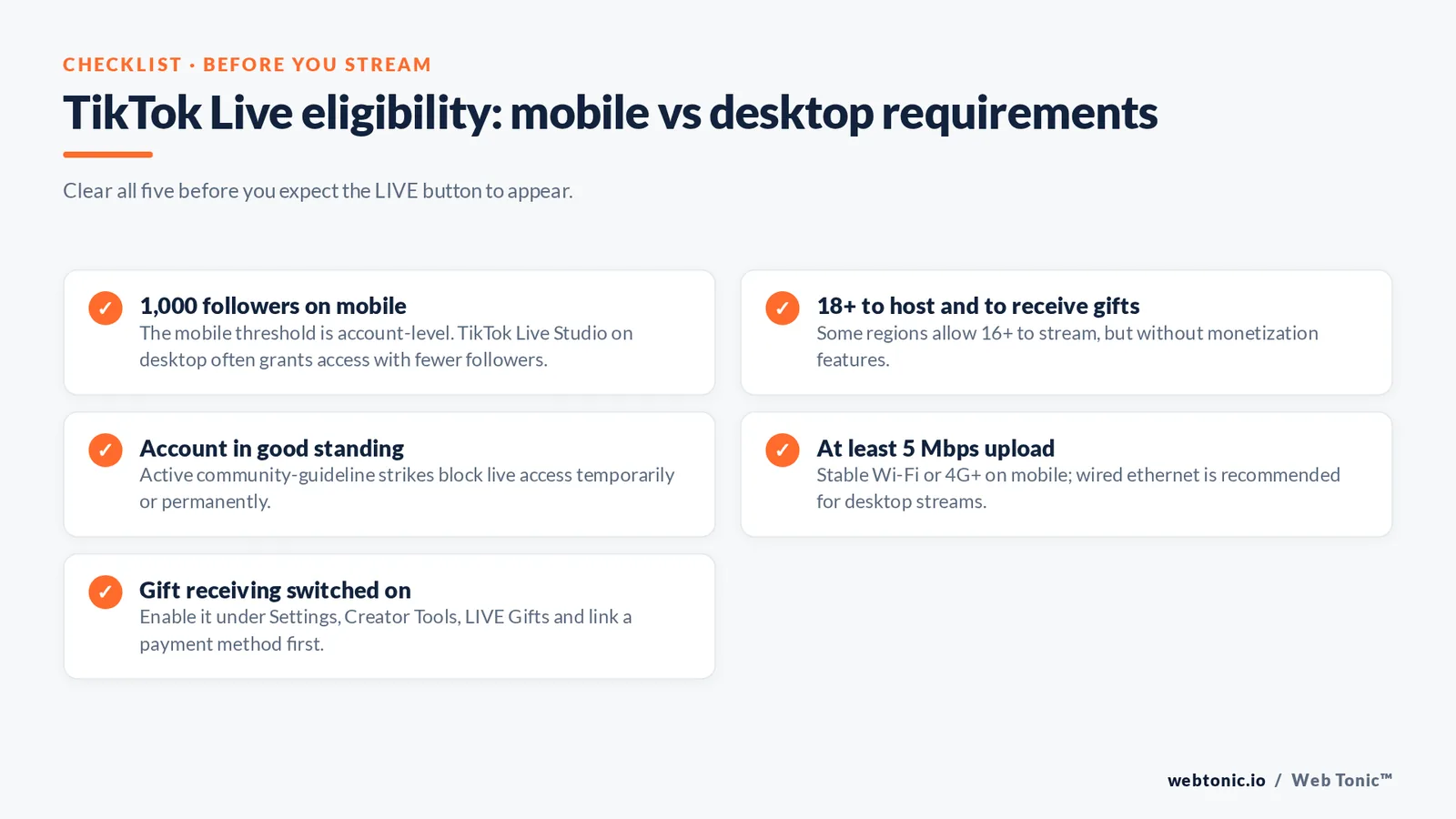
The minimum follower count for mobile TikTok Live is 1,000 followers. Once your profile crosses that mark, the live option appears automatically in the creation menu. You must also be at least 18 years old to host a live stream (16+ in some regions, but without monetization features). Your account needs to be in good standing — TikTok community guidelines violations can temporarily or permanently disable live access.
Desktop streaming via TikTok Live Studio has different rules. Some creators report gaining access with fewer than 1,000 followers when using the desktop application. TikTok has gradually expanded eligibility for the desktop client, making it the best workaround for newer accounts that want to start streaming before hitting the mobile threshold.
| Requirement | Mobile Live | Desktop (Live Studio) | Notes |
|---|---|---|---|
| Minimum Followers | 1,000 | Varies (often lower) | Threshold is account-level, not per-video |
| Minimum Age | 18+ | 18+ | 16+ in select regions (no gifts) |
| Account Standing | No active violations | No active violations | Community guideline strikes block access |
| Internet Connection | Stable Wi-Fi or 4G+ | Wired ethernet recommended | Min 5 Mbps upload for smooth streaming |
| Gift Receiving | 18+ only | 18+ only | Must enable in creator settings |
How to Go Live on TikTok From Your Phone
Going live from the TikTok app is straightforward once your account meets the requirements. Follow these steps to launch your first mobile live stream:
Step 1: Open the TikTok app and tap the + button at the bottom center of the screen — the same button you use to create regular videos.
Step 2: Swipe to the "LIVE" option in the bottom navigation bar. You should see recording modes like Camera, Templates, and LIVE. If the LIVE option does not appear, your account has not yet met the 1,000-follower requirement or has an active restriction.
Step 3: Add a compelling title. Your live stream title is one of the first things potential viewers see when browsing the live feed. Use clear, specific titles under 32 characters — "AMA: Social Media Tips" performs better than "Going Live!!" because it tells scrollers exactly what value they will get.
Step 4: Choose your cover image. Select a high-quality photo or use TikTok's built-in filters to create an eye-catching thumbnail. Streams with custom cover images receive 25% more initial taps from the discovery feed.
Step 5: Set your topic and filters. TikTok lets you tag your stream with a topic category (Gaming, Music, Education, etc.) so the algorithm surfaces it to relevant audiences. Apply beauty filters or effects if they fit your brand.
Step 6: Tap "Go Live." Your stream begins broadcasting immediately. The app displays real-time viewer count, comments, and gift notifications. Pin a comment to guide new joiners and keep the conversation focused.
How to Go Live on TikTok From Desktop
TikTok Live Studio is the platform's official desktop streaming application, available for Windows and macOS. It unlocks professional broadcasting features that the mobile app cannot match — multiple scenes, custom overlays, screen sharing, and external camera inputs.
Step 1: Download TikTok Live Studio from tiktok.com/live/download. Install and log in with your TikTok credentials.
Step 2: Configure your stream settings. Set your resolution (720p or 1080p), frame rate (30 or 60 fps), and bitrate. A stable upload speed of at least 5 Mbps is essential — wired ethernet connections consistently outperform Wi-Fi for live streaming stability.
Step 3: Set up scenes and sources. Add your webcam, screen share, images, text overlays, and browser sources. TikTok Live Studio supports scene switching during a stream, similar to OBS Studio.
Step 4: Add your stream title and topic, then click "Go Live." Your desktop stream appears in the same live feed as mobile broadcasts — viewers cannot tell the difference.
Alternative: Use OBS with a stream key. If you prefer OBS Studio or Streamlabs, go to your TikTok creator dashboard at tiktok.com/studio, navigate to the Live section, and copy your stream key and server URL. Paste these into OBS under Settings → Stream → Custom Server. This method gives experienced streamers full control over encoding and scene composition.
Tips to Grow Your TikTok Live Audience
Starting a stream is easy — building an audience that returns consistently is the real challenge. These tactics are backed by creator data and platform best practices.
Schedule and promote in advance. Post a teaser video or story 24–48 hours before your live session with a clear date, time, and topic. Pre-announced streams attract 40% more initial viewers compared to spontaneous broadcasts. Use TikTok's built-in countdown sticker in stories to let followers set reminders.
Stream during peak hours. The 6–9 PM local time window consistently draws the highest live viewership, though your specific audience may behave differently. Test multiple slots over two weeks and track average concurrent viewers to find your personal peak. Growth marketing principles apply here — optimize for the metric that matters, not assumptions.
Engage viewers within the first 60 seconds. Greet newcomers by name, ask an opening question, or tease upcoming content to give people a reason to stay. TikTok's algorithm favors streams with high watch-time-to-viewer ratios, so keeping early arrivals engaged triggers wider distribution.
Go live for at least 30 minutes. Shorter sessions rarely build momentum. The optimal live duration is 30–60 minutes — long enough to accumulate viewers through algorithmic recommendations, short enough to maintain energy. Creators who stream over 60 minutes see diminishing engagement per minute after the first hour.
Collaborate with other creators. TikTok's multi-guest feature lets you invite up to five guests into your stream. Cross-audience exposure during co-streams is one of the fastest organic growth levers on the platform, especially for accounts under 10,000 followers.

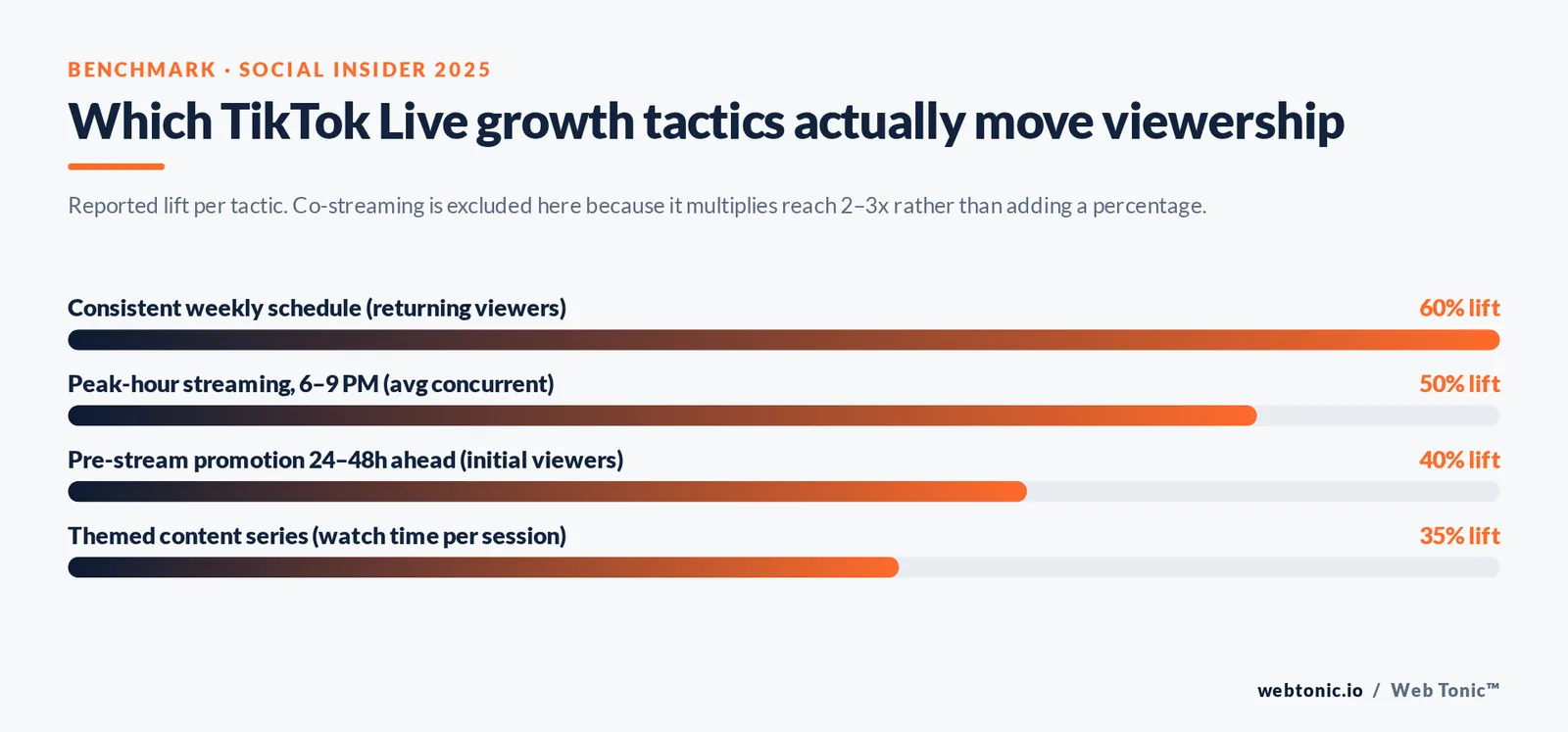
| Growth Tactic | Impact on Viewership | Effort Level | Best For |
|---|---|---|---|
| Pre-stream promotion (stories/posts) | +40% initial viewers | Low | All account sizes |
| Consistent weekly schedule | +60% returning viewers | Medium | Creators building community |
| Co-streaming with guests | 2–3× audience reach | Medium | Accounts under 10K followers |
| Themed content series | +35% watch time per session | High | Niche creators (cooking, fitness, tech) |
| Peak-hour streaming (6–9 PM) | +50% avg concurrent viewers | Low | All account sizes |
How to Earn Money From TikTok Live
Monetization is one of the biggest draws of live streaming on TikTok. Several revenue channels are available to eligible creators.
Virtual gifts are the primary income source during live sessions. Viewers purchase TikTok Coins (starting at $0.99 for 65 coins) and use them to send animated gifts — Roses, Pandas, Drama Queens — that appear on screen during the stream. Each gift has a Diamond value, and creators cash out Diamonds at approximately $0.05 per Diamond through TikTok's payment system. Top creators earn $500–$5,000+ per live session from gifts alone.
Live shopping lets creators showcase products directly during a stream. Viewers can tap product links pinned to the broadcast and purchase without leaving the app. TikTok Shop live selling sessions convert at 3–5× the rate of static product posts, making this a significant channel for e-commerce brands and affiliate marketers.
Subscription badges allow loyal viewers to pay a monthly fee for exclusive perks — custom chat badges, subscriber-only content, and priority in multi-guest features. This creates a recurring revenue layer that compounds as your community grows.
From a performance creative perspective, live streams also serve as a testing ground for messaging and product positioning. The real-time feedback loop — comments, reactions, questions — reveals what resonates with your audience faster than any A/B test.

Common TikTok Live Problems and Fixes
Technical issues during a live stream can kill engagement before it builds. Here are the most frequent problems and how to resolve them.
Stream lag or buffering: Usually caused by insufficient upload bandwidth. Switch to a wired connection, close background apps consuming bandwidth, and lower your stream resolution from 1080p to 720p. Minimum recommended upload speed is 5 Mbps.
Live option not showing: Confirm your account has 1,000+ followers, your age is set correctly, and there are no active community guideline violations. Force-close and reopen the app. If the issue persists, try accessing live from TikTok Live Studio on desktop.
Low viewer count: Do not end the stream early. TikTok's algorithm needs 10–15 minutes to begin recommending your stream to new viewers. Keep engaging with the viewers you have — the algorithm prioritizes streams with active chat and high average watch time. Consider going live during documented peak hours and pre-promoting with a teaser post.
Gift receiving disabled: Navigate to Settings → Creator Tools → LIVE Gifts and toggle the feature on. You must have a linked payment method and be 18+ to receive gifts.
Related reading
- How to Get on the TikTok FYP: Eligibility, Signals and Fixes
- The Complete Breakdown of Painting TikTok Ads Statistics (2026)
- How Personal Injury Law Businesses Use TikTok Ads in 2026: Stats & Insights
- Paid Social services at Web Tonic
FAQ
How many followers do you need to go live on TikTok?
You need at least 1,000 followers to access TikTok Live on the mobile app. Desktop users streaming through TikTok Live Studio may gain access with fewer followers, as the eligibility threshold for the desktop client is lower in many regions. Your account must also be in good standing with no active community guideline violations.
Can you go live on TikTok without 1,000 followers?
Yes — through TikTok Live Studio on desktop. The desktop streaming application sometimes grants access to accounts with fewer than 1,000 followers. Download the app from tiktok.com/live/download, log in, and check whether the Go Live button is available. Alternatively, use a third-party tool like OBS with a stream key from your creator dashboard.
How do you earn money from TikTok Live?
Creators earn through virtual gifts sent by viewers during streams. Viewers buy TikTok Coins and send animated gifts that convert to Diamonds. Creators cash out Diamonds at roughly $0.05 each. Additional revenue comes from live shopping integrations, subscription badges, and brand sponsorships for live appearances.
What is the best time to go live on TikTok?
The 6–9 PM local time window produces the highest average viewership across most content categories. However, the ideal time depends on your audience demographics and content niche. Test multiple time slots over two weeks and track average concurrent viewers to identify your peak engagement window.
Why can't I see the Live option on TikTok?
The live feature does not appear if your account has fewer than 1,000 followers, your age is set below 18, or you have active community guideline violations. Force-close the app and reopen it. If the issue persists, update to the latest version of the TikTok app or try streaming from the desktop TikTok Live Studio client.
Sources: TikTok — Community Guidelines · TikTok — Live Studio Download · Social Insider — TikTok Live Benchmarks 2025 · TikTok Newsroom — How to Go Live · Buffer — TikTok Live Guide · TikTok Support — Going Live · Business Insider — How to Go Live · Sprout Social — TikTok Data 2025 · Web Tonic — Contact