
Table of contents
The best video editing software for beginners is the one you can finish a first video in — usually DaVinci Resolve if you want free professional depth, CapCut or Clipchamp if you want speed, and iMovie if you are on a Mac.
This guide compares 12 beginner-friendly video editors, free and paid, desktop and app, and shows which one fits the kind of videos you actually plan to make.
Key Takeaways
- 91% of businesses use video as a marketing tool and 93% of video marketers call it an important part of their strategy, according to Wyzowl's 2026 survey of 266 respondents.
- DaVinci Resolve 21 is the strongest free video editor available: editing, colour, audio and effects in one app, with the paid Studio version a one-time $295 upgrade.
- The 2 biggest reasons businesses skip video are that it feels unnecessary and too expensive — both cited by 24% of non-users — and free editors remove the second one entirely.
- For social clips, a mobile or browser editor beats a desktop suite: expect a finished vertical video in 10 to 20 minutes instead of an afternoon.
- Pick on 4 criteria only: your device, your video type, whether you need drag-and-drop templates, and your export requirements.
- 4 of the 12 editors here are free open source with no watermark, no account and no upload limit.
- Budget 3 to 5 hours of practice on any editor before you judge it — most beginner frustration is unfamiliarity, not software quality.
What makes video editing software beginner friendly
Beginner friendly does not mean fewer features. It means the first 5 actions you need — import clips, trim, reorder, add text, export — are discoverable without a tutorial. Judge any editor against these 6 signals before you commit an evening to it.
| Signal | What good looks like | Why it matters for beginners |
|---|---|---|
| Drag and drop editing | Clips snap to the timeline without gaps | Removes the single most common early error |
| Templates and presets | Ready-made titles, transitions, captions | A watchable result on day 1 |
| Auto captions | Speech recognition with an editable transcript | Most social video is watched muted |
| Export presets | One-click 1080p vertical, square and 16:9 | No codec or bitrate decisions |
| Tutorials in the product | Official training, not just forum threads | Cuts the learning curve by days |
| A path to advanced features | Colour, keyframes, audio mixing when you need them | You do not have to switch tools in 6 months |
The last row is the one beginners underrate. Learning a tool costs real hours, so an editor with advanced features you can grow into is usually a better investment than the simplest possible app.
The 12 best video editing software options for beginners
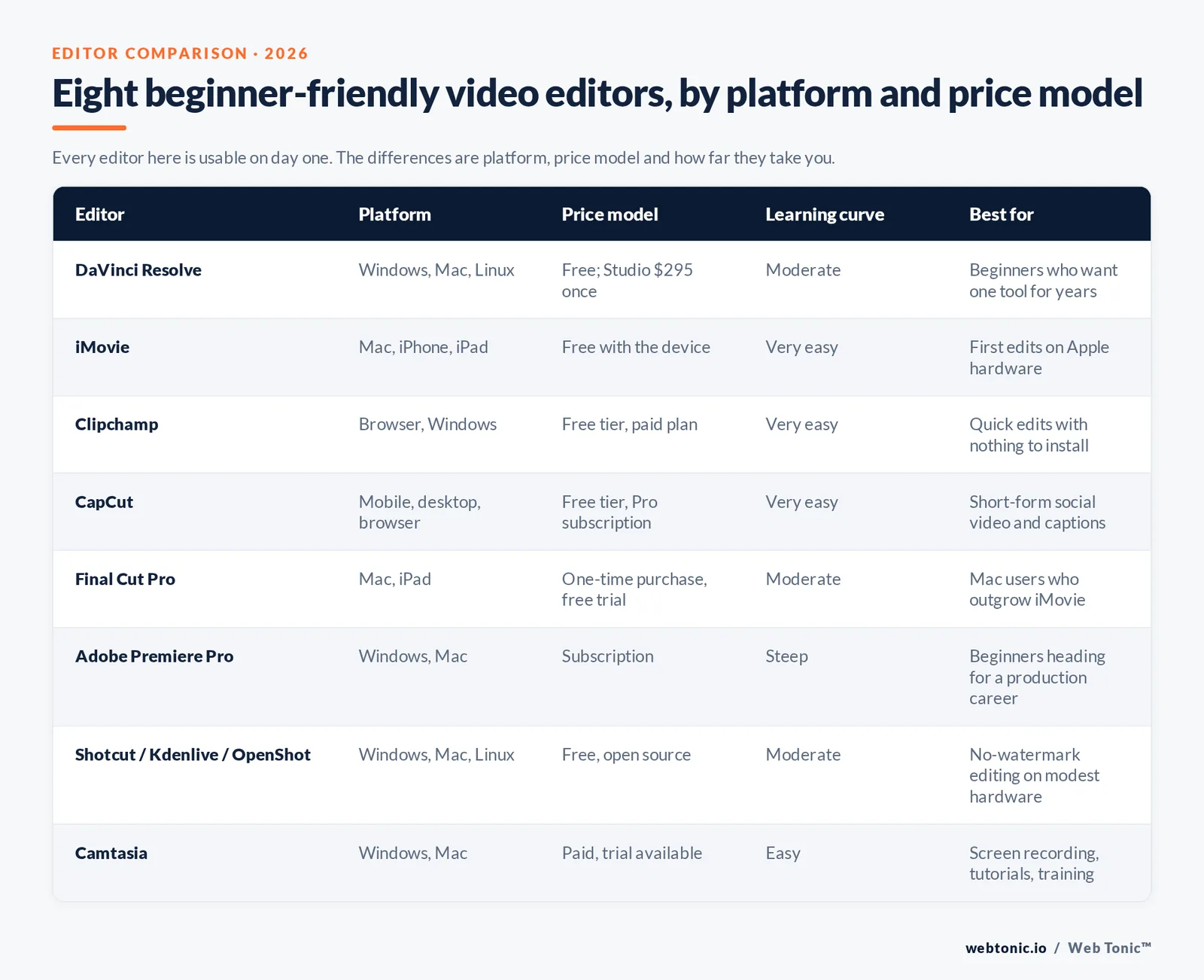
Every editor below is genuinely usable on day one. The differences are platform, price model and how far they take you afterwards.
| Video editor | Platform | Price model | Learning curve | Best for |
|---|---|---|---|---|
| DaVinci Resolve | Windows, Mac, Linux | Free; Studio $295 once | Moderate | Beginners who want one tool for years |
| iMovie | Mac, iPhone, iPad | Free with the device | Very easy | First edits on Apple hardware |
| Clipchamp | Browser, Windows | Free tier, paid plan | Very easy | Quick edits with nothing to install |
| CapCut | Mobile, desktop, browser | Free tier, Pro subscription | Very easy | Short-form social video and captions |
| Adobe Express | Browser, mobile | Free tier, subscription | Very easy | Brand-consistent social clips |
| Adobe Premiere Pro | Windows, Mac | Subscription | Steep | Beginners heading for a production career |
| Final Cut Pro | Mac, iPad | One-time purchase, free trial | Moderate | Mac users who outgrow iMovie |
| Shotcut | Windows, Mac, Linux | Free, open source | Moderate | No-watermark editing on old hardware |
| Kdenlive | Windows, Mac, Linux | Free, open source | Moderate | Multi-track projects without a subscription |
| OpenShot | Windows, Mac, Linux | Free, open source | Easy | Simple cuts, titles and slideshows |
| Camtasia | Windows, Mac | Paid, trial available | Easy | Screen recording, tutorials, training |
| WeVideo | Browser, mobile | Subscription tiers | Very easy | Teams and classrooms editing together |
DaVinci Resolve — the best free video editor overall
DaVinci Resolve 21 combines editing, colour correction, visual effects, motion graphics and audio post in a single application, and the free version is not a crippled trial — it is the same editor used on commercial work. Beginners should start on the Cut page, which is deliberately simplified, then move to the Edit page once trimming feels natural. The Studio upgrade is a one-time $295 purchase rather than a subscription, which makes the long-run cost lower than any monthly tool.
iMovie — the fastest start on a Mac or iPhone
iMovie is free on every Mac, iPhone and iPad, opens in seconds and handles trimming, titles, music and a clean export without a single setting. Its ceiling is low — no multicam, limited tracks — but for a first video, a family edit or a simple talking-head clip it removes every excuse. When you outgrow it, projects move naturally into Final Cut Pro, which keeps the same magnetic-timeline logic and adds captions, colour grading and iPad editing.
CapCut and Clipchamp — browser and app editors for social clips
CapCut is built around the workflow short-form creators actually use: import from the camera roll, auto-caption, trim to the beat, export vertical. Clipchamp does the same job in a browser tab with Microsoft account integration, which makes it the easiest option on a locked-down work laptop. Both have free tiers that are enough for weekly social posting, and both hide advanced features behind a paid plan rather than blocking the basics.
The free open-source editors: Shotcut, Kdenlive, OpenShot and Blender
If you want no watermark, no account and no upload limit, Shotcut, Kdenlive and OpenShot are free open source and run on Windows, Mac and Linux, including on modest hardware. Blender's video sequence editor is a bonus if you are already using it for 3D. The trade-off is polish: interfaces are less guided and you will lean on community tutorials more than in-product training.
Free vs paid video editing software for beginners
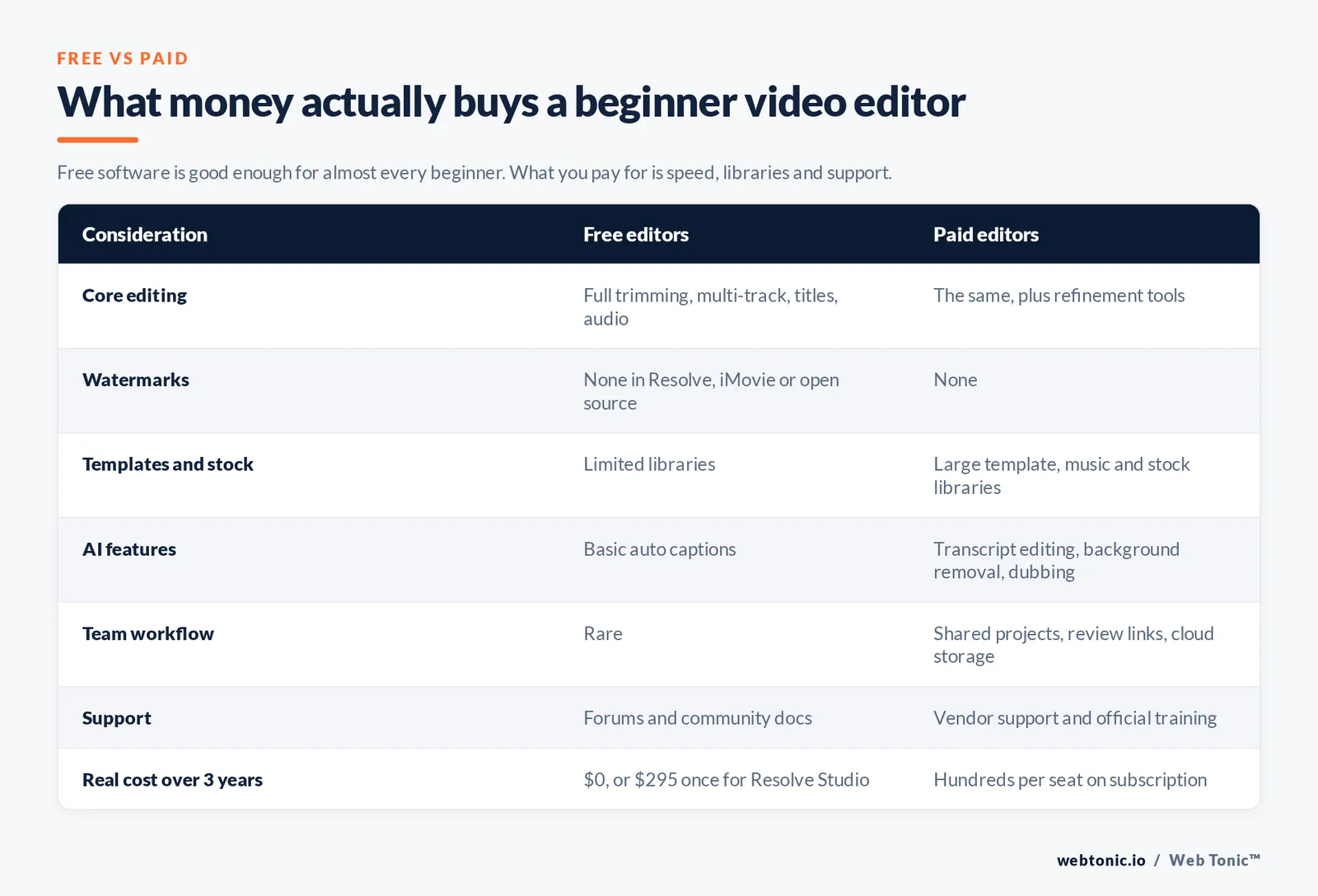
The honest answer in 2026: free video editing software is good enough for almost every beginner. What you buy with money is speed, support and specific professional features, not basic capability.
| Consideration | Free editors | Paid editors |
|---|---|---|
| Core editing | Full trimming, multi-track, titles, audio | Same, plus refinement tools |
| Watermarks | None in Resolve, iMovie or open source | None |
| Templates and stock | Limited libraries | Large template, music and stock libraries |
| AI features | Basic auto captions | Transcript editing, background removal, dubbing |
| Team workflow | Rare | Shared projects, review links, cloud storage |
| Support | Forums and community docs | Vendor support and official training |
| Real cost over 3 years | $0, or $295 once for Resolve Studio | Hundreds per seat on subscription |
A sensible sequence for a small business: start free, publish 10 videos, and only pay when a specific bottleneck appears — usually stock media, collaboration or brand templates. Paying first almost always means paying for advanced features you have not needed yet.
Which editor should you choose? A 4-question decision path
- Question 1 — What are you making? Vertical social clips point to CapCut, Clipchamp or Adobe Express. Long-form YouTube, client work or anything with colour grading points to DaVinci Resolve or Final Cut Pro. Software tutorials point to Camtasia.
- Question 2 — What device do you edit on? Mac or iPhone: start with iMovie. Windows desktop: Clipchamp or Resolve. Chromebook or locked-down laptop: a browser-based video editor is your only realistic option.
- Question 3 — Do you want templates or control? Templates get a watchable video out in 15 minutes. Control gets a distinctive one out in 2 hours. Both are valid; mixing them badly is what stalls beginners.
- Question 4 — Where does this go in 12 months? If video becomes a channel rather than an experiment, learn one tool with professional depth now. Resolve is free, so choosing it costs nothing but attention.
Your first edit: a 7-step beginner workflow
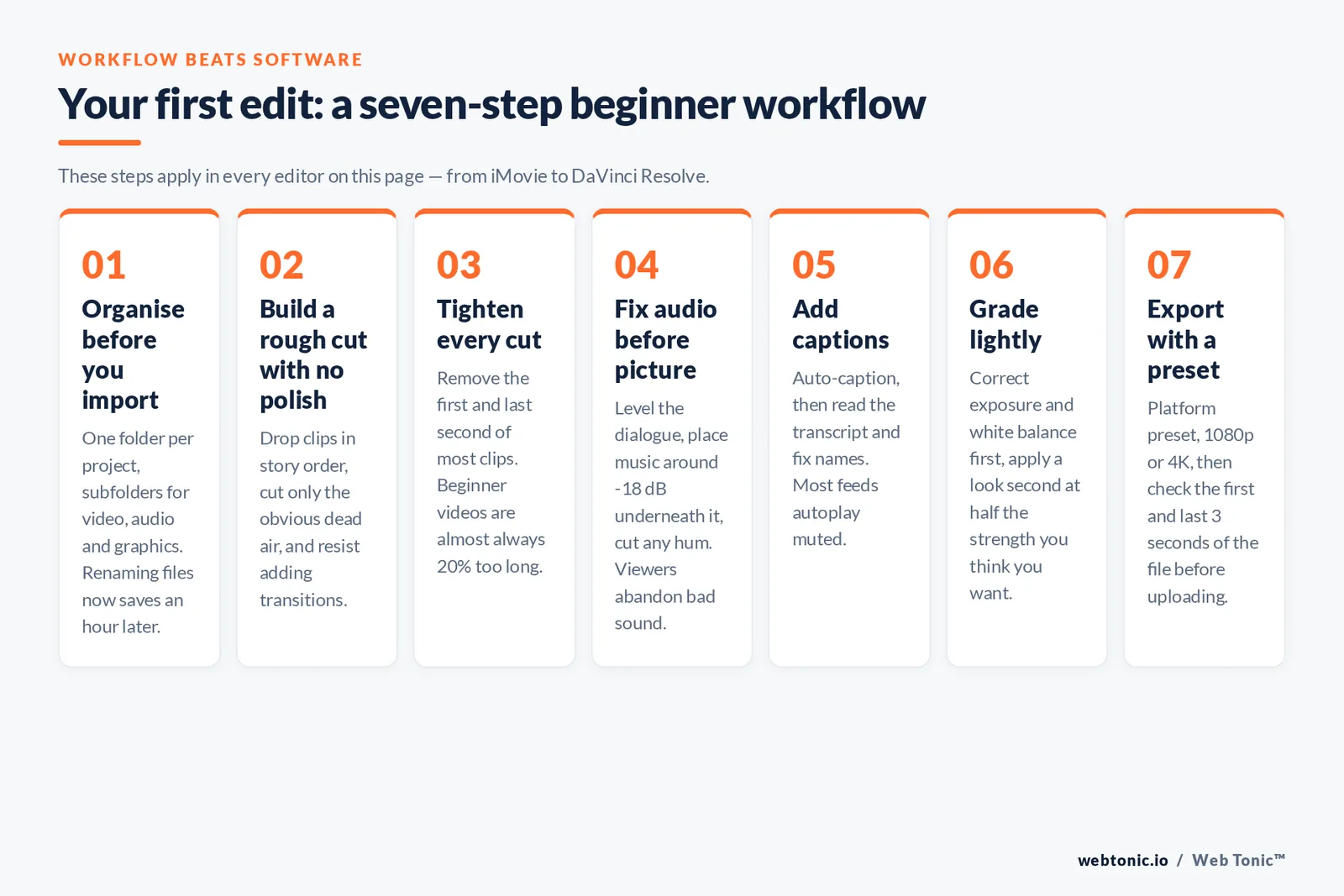
The workflow matters more than the software. These 7 steps apply in every editor on this page.
- Step 1 — Organise before you import. One folder per project, subfolders for video clips, audio and graphics. Renaming files now saves an hour later.
- Step 2 — Build a rough cut with no polish. Drop clips on the timeline in story order and cut only the obvious dead air. Resist adding transitions.
- Step 3 — Tighten every cut. Remove the first and last second of most clips. Beginner videos are almost always 20% too long.
- Step 4 — Fix audio before picture. Level the dialogue, add music at roughly -18 dB underneath it, and cut any hum. Viewers forgive soft footage and abandon bad sound.
- Step 5 — Add captions. Use auto captions, then read the transcript and fix names. Most feeds autoplay muted, so captions are a reach decision, not an accessibility afterthought.
- Step 6 — Grade lightly. Correct exposure and white balance first; apply a look second, at half the strength you think you want.
- Step 7 — Export with a preset. Choose the platform preset, 1080p or 4K, and check the first and last 3 seconds of the file before you upload.
Follow that order on 3 projects and editing stops feeling like software and starts feeling like storytelling. If you would rather hand the whole pipeline over, our performance creative team produces and edits video ads at volume, and our growth marketing team plans where those videos go.
Five mistakes beginners make with video editing software
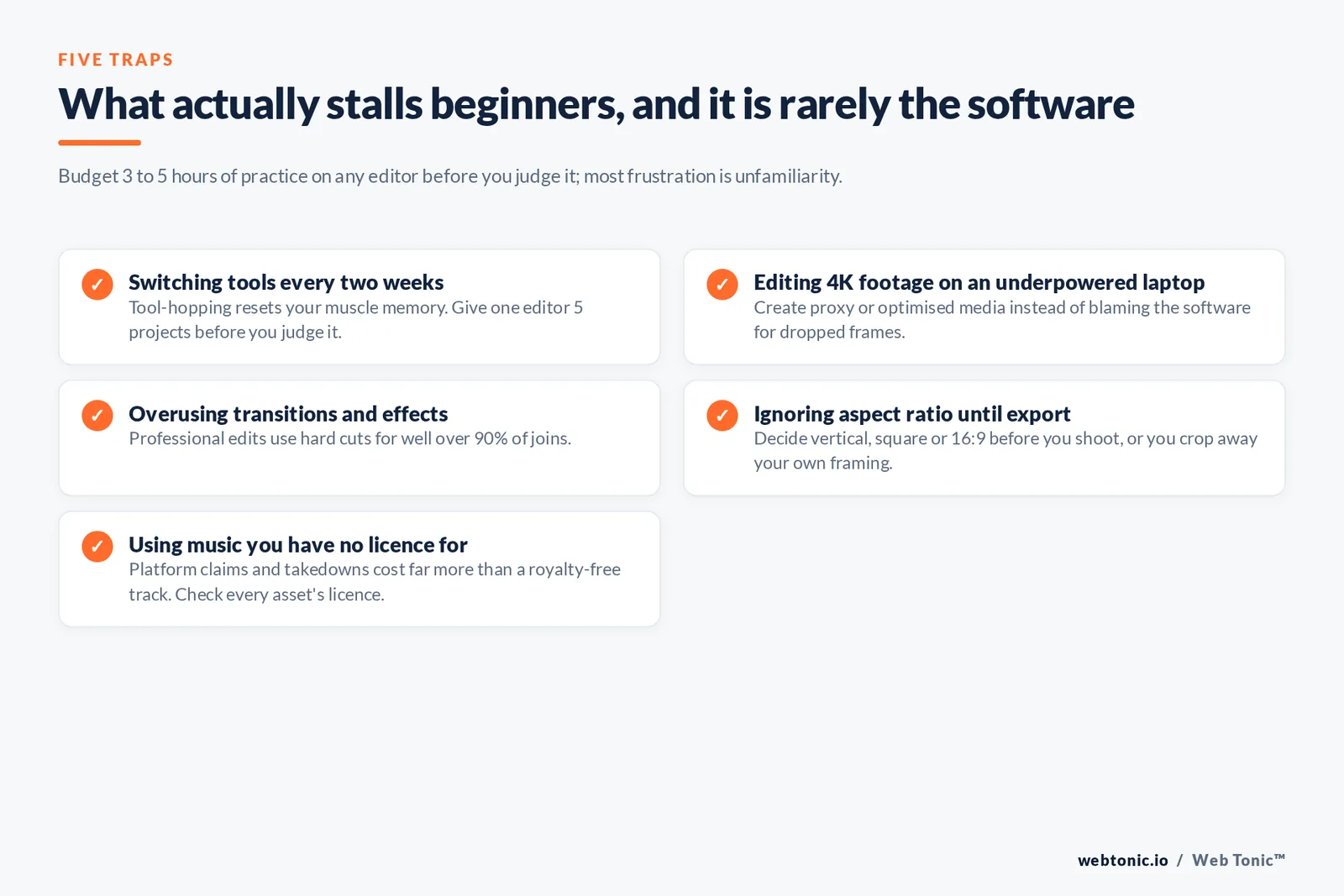
- Mistake 1 — Switching tools every 2 weeks. Tool-hopping resets your muscle memory. Give one editor 5 projects before you judge it.
- Mistake 2 — Editing 4K footage on an underpowered laptop. Create proxy or optimised media instead of blaming the software for dropped frames.
- Mistake 3 — Overusing transitions and effects. Professional edits use hard cuts for well over 90% of joins.
- Mistake 4 — Ignoring aspect ratio until export. Decide vertical, square or 16:9 before you shoot, or you will crop away your own framing.
- Mistake 5 — Using music you have no licence for. Platform claims and takedowns cost far more than a royalty-free track. Check the licence for every asset.
Short-form video keeps absorbing more attention across every platform — Buffer's short-form video research is a useful primer, and Wyzowl's 2026 video marketing statistics quantify how much of it is now business-made. Publishing 1 imperfect video a week teaches you more than another month of comparing editors. More practical guides are on the Web Tonic blog, and if you want a review of your video workflow, get in touch.
FAQ
What is the easiest video editing software for beginners?
iMovie on Apple devices and Clipchamp in a browser are the easiest to finish a first video in, because both use drag-and-drop editing, offer ready-made titles and export with one-click presets. CapCut is equally easy for vertical social clips. If you want easy now and advanced features later, DaVinci Resolve's Cut page is the best compromise available for free.
Are there good free video editors for beginners?
Yes — and they are no longer compromises. DaVinci Resolve is free and professional-grade, iMovie is free on Apple hardware, and Shotcut, Kdenlive, OpenShot and Blender are free open source with no watermark or export limits. CapCut, Clipchamp and Adobe Express all have functional free tiers. For most beginners, the free version of one of these is enough for a full year of publishing.
Can beginners edit videos effectively on a mobile app?
For short-form video, yes. Mobile video editing apps handle trimming, captions, music and vertical export well, and cut the round trip of moving clips to a desktop. The limits appear with long timelines, multicam, precise audio mixing and colour grading — at that point a desktop video editor saves more time than the phone ever did.
What is the difference between free and paid video editing software?
Paid editors buy you libraries, AI conveniences, collaboration and vendor support, not fundamentally better cutting tools. Free editors now cover import, multi-track timelines, titles, audio and export at full quality. The practical rule: stay free until a specific task is blocked, then pay for the tool that unblocks it — and prefer a one-time purchase such as Resolve Studio at $295 over an open-ended subscription.
Do I need a powerful computer to start editing video?
No, but match your footage to your hardware. 1080p editing runs on most laptops from the last 5 years; 4K needs more RAM, a decent GPU and fast storage. If playback stutters, shoot 1080p, edit with proxy media, or use a browser-based editor that renders in the cloud instead of upgrading your machine.
Sources: Blackmagic Design DaVinci Resolve 21 product and Studio pages; Apple Final Cut Pro and iMovie support pages; CapCut and Clipchamp product sites; Shotcut, Kdenlive, OpenShot and Blender project documentation; TechSmith Camtasia; WeVideo; Wyzowl Video Marketing Statistics 2026 (266 respondents surveyed in late 2025); Buffer short-form video research.