
Table of contents

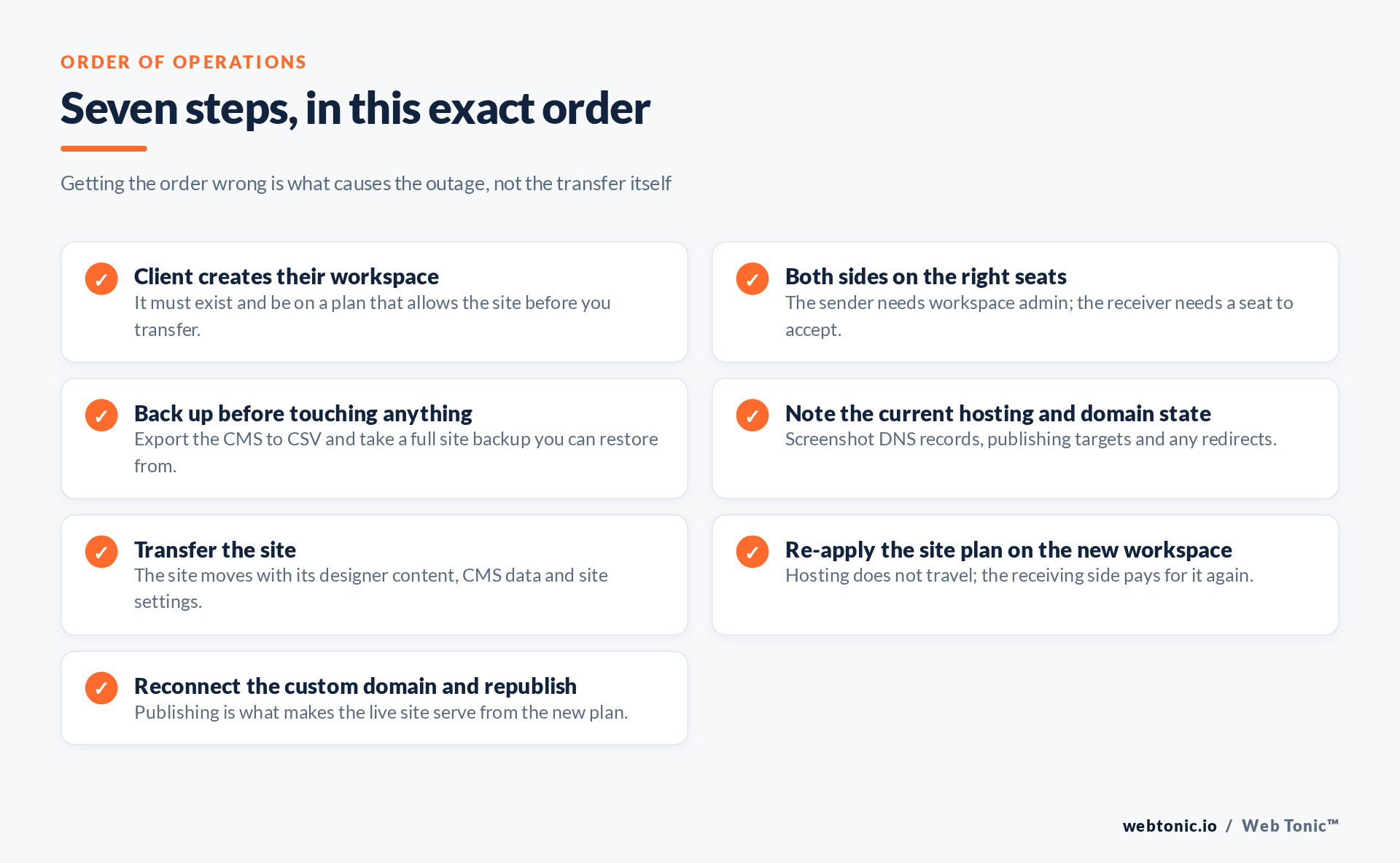
Quick answer: Have the client create their workspace and a seat first, back up the CMS, then transfer the site. The site moves; the hosting plan and custom domain do not. Buy the site plan on the receiving workspace, reconnect the domain and republish — that last step is what prevents downtime.
Last verified: 2026-08-21
Downtime comes from the order, not the transfer
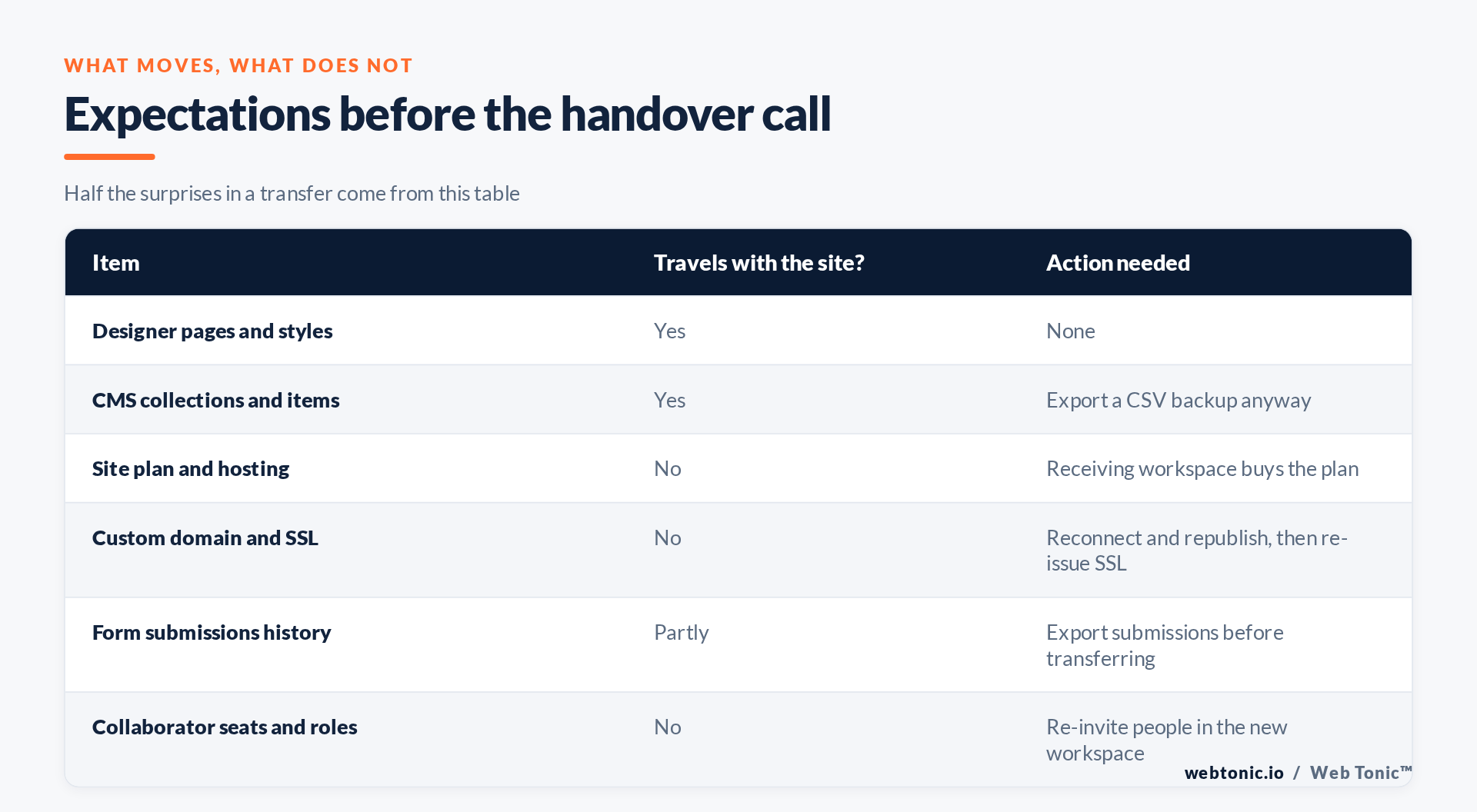
A Webflow site transfer moves the project — pages, styles, interactions, CMS collections and their items — into a different workspace. What it does not move is the commercial layer: the paid site plan that serves the published site, and the custom domain configuration attached to it. If you transfer a live, hosted site into a workspace that has not paid for hosting, the published site can stop serving until the receiving side buys a plan and republishes.
That is the whole risk, and it is entirely avoidable by sequencing. Prepare the destination first, transfer second, re-establish hosting and domain third, verify fourth. Everything below assumes a site that is already live on a custom domain, which is the only case where downtime is possible at all — a staging-only project can be transferred casually.
Before you touch the transfer button
The destination workspace must exist. The client creates it under their own billing identity — not a personal account belonging to whoever happens to be marketing manager this year. Webflow's plan structure separates workspace seats from per-site hosting, so confirm both: a workspace that can hold the site, and the budget for the site plan that will follow.
Take backups you can actually restore. Export every CMS collection to CSV, export form submissions, and take a site backup so you can roll back inside the old workspace if something is wrong. Backups cost ten minutes and remove the fear that makes people delay handovers for months.
Record the current live state. Screenshot the DNS records at the registrar, note which domain is set as default, and list any redirects configured in site settings. If you also manage the SEO, capture current indexed URLs first; a handover is exactly when redirect rules quietly get dropped, and Google's site move guidance is worth re-reading if URLs change at the same time.
The transfer, step by step
- Confirm roles. You need admin rights in the sending workspace; the client needs a workspace where they can accept an incoming site.
- Back up. CMS CSV exports, form submissions export, site backup. Do not skip because "it is only a small site".
- Open the site settings in the sending workspace and choose to transfer the site. Select the destination workspace, which must be one you have been granted access to, or send the transfer to the client's workspace for them to accept.
- Accept on the receiving side. The site appears in the client's workspace with its designer content and CMS data intact.
- Buy the site plan on the receiving workspace. Hosting is per-site and per-workspace; it does not travel with the project.
- Reconnect the custom domain in the new workspace's site settings, confirm the DNS records at the registrar still match what Webflow expects, and set the default domain.
- Publish. Nothing you have done is live until you publish to the custom domain from the new workspace. Then confirm SSL has been issued and the padlock is clean.
| Check | How to verify | Why it matters |
|---|---|---|
| Homepage serves over HTTPS | Load the domain in a private window | Confirms plan, domain and SSL all landed |
| CMS item count matches | Compare against your CSV export | Catches partial or stalled transfers |
| Forms deliver | Submit a test and check notifications | Notification emails are workspace-scoped |
| Redirects still fire | Request three old URLs and inspect status codes | A dropped 301 costs rankings quietly |
| Integrations reconnected | Check analytics, chat and API tokens | Site-level API keys often need re-issuing |
| People have access | Review the new workspace member list | Seats and roles do not transfer |
The traps worth naming
Billing surprise. The client sees a new charge for the site plan on the day of transfer while your invoice for the old plan is still in flight. Say this out loud before the handover, in writing, with the amount.
API keys and integrations. Anything authenticated per site or per workspace — a Data API token, an app installation, a Zapier or Make connection — is likely to need re-issuing in the new workspace. Inventory them before the move, not when the client reports that their lead notifications stopped.
Redirects and canonicals. Verify a handful of legacy URLs return a genuine 301 as defined in RFC 9110, not a soft 404 or a chain. This is the part of a handover with a lasting cost, and it is why we treat transfers as part of Webflow and web development work rather than an admin chore.
Access hygiene. After the move, remove your own seats when the engagement ends, keep two client-side admins so a single departure cannot orphan the site, and apply the same least privilege logic used in the wider access handoff.
Frequently Asked Questions
Does a Webflow site transfer cause downtime?
Only if the receiving workspace has no site plan or the custom domain is not reconnected and republished. Prepare both in advance and the switch is effectively instant.
Does the CMS content transfer with the site?
Yes, collections and their items move with the project. Export a CSV backup anyway so you can verify item counts afterwards.
Do I have to buy the hosting plan again?
The receiving workspace pays for the site plan; hosting is tied to the site within a workspace and does not travel. Agree who is invoiced before the transfer date.
Will my custom domain and SSL carry over?
No. Reconnect the domain in the new workspace, confirm the DNS records at the registrar, publish, and let Webflow issue a fresh certificate.
Can I reverse a transfer?
The receiving workspace can transfer the site back, which is one more reason both sides should keep admins in place until the handover has been verified end to end.
Sources: Webflow Data API; Webflow plans; Google Search Central — redirects; site moves; RFC 9110; NIST. Last verified 2026-08-21.